
Export & Share
Export reports
Send an estimate the way your customer, adjuster or carrier needs it. One Export dialog gives you a branded PDF, a live share link or a QuickBooks draft invoice.
Everything that takes an estimate out of Wave goes through one place: the Export dialog. You choose what the document should contain, then pick where it goes.
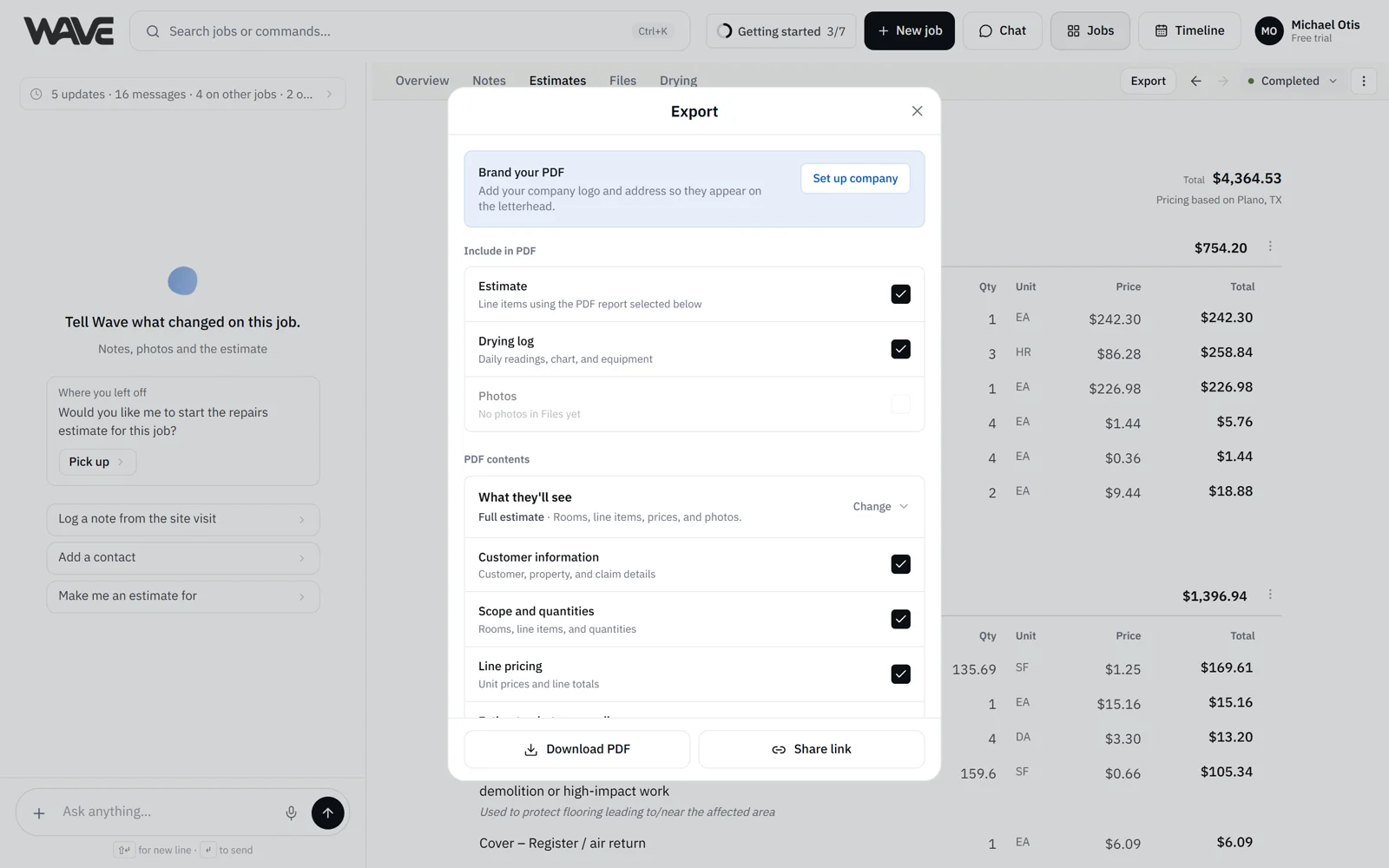
Open the Export dialog
Any of these opens it:
- From the estimate. Go to Jobs, open the job, select the Estimates tab and click Export in the job's top bar.
- From any other tab of the job. Every job has an Export button in the top bar, on Overview, Notes, Files and Drying too. With an estimate, the dialog offers the full set of documents. Without one, you can still export a cover page and the job's photos.
- By asking Wave. Tell Wave in the job's chat that you want to export, and it opens the dialog for you.
The Share link button appears in the dialog you open from the Estimates tab. See Share an estimate.
Export stays available while an estimate is locked, so you can lock an estimate and then send it.
Where it can go
- A PDF. A finished document to email, print or file. Click Download PDF. On a phone the button reads Send PDF and opens your phone's share sheet, so you can text, email or save it in one step.
- A share link. The recipient reads the live estimate in a browser. A customer link is view-only. On an adjuster link, the adjuster signs in and can comment on individual lines. See Share an estimate.
- An estimate file. You can also export an estimate as a file for other estimating software. A Wave account specialist sets this up for your company.
- Send to QuickBooks. If your company invoices through QuickBooks, create a draft invoice in your connected QuickBooks company, which you review and send yourself. See Send an estimate to QuickBooks.
Which one to choose
Pick by how final the estimate is:
- Still moving? Send the link. A share link shows the current estimate, so a fix you make this afternoon is what your customer sees tonight.
- Finished? Send the PDF. A PDF is a snapshot, ideal when the customer wants paper, the carrier's system wants a file, or you're filing a closed job.
- Ready to bill? If your company invoices through QuickBooks, send it there when the estimate becomes an invoice.
You can combine them. Share a link and send a PDF of the same estimate.
One PDF, one packet
The dialog can put several documents into a single PDF. Under Include in PDF you tick what goes in:
- A Cover page with the customer, property, loss and insurance details. It always leads when an estimate or drying log is in the PDF, except on an invoice.
- The estimate you're on
- Other estimates on the same job, such as the repairs estimate next to the water estimate
- The job's drying log, on plans that include drying logs. Wave generates sample dry logs based on what real drying science would be, to help anyone on your team who is new to drying understand drying goals for the job. Spot-check readings on site before the log goes out.
- Photos from the job's Files tab. Photos you mark Add to export go in by default, and one tap switches to all photos.
PDFs from the job's Files tab can ride along too. Tick them under PDF contents, and they are added at the end of the file.
Under Output, the Document switch frames the PDF as an Estimate or an Invoice. The content stays the same, and the title and wording change to match.
For every option, including the homeowner-friendly summary with no line prices, see Customize reports.
Your branding and file names
Your company name, address, phone and logo come from Settings > Company and print on the letterhead. Admins can also set the look of every export in Settings > Exports (styled or plain, brand accent color and cover style) and, on Pro and Enterprise and during the free trial, add letterheads for other locations in Settings > Letterheads. If your company has two or more letterheads, you can switch letterhead right in the Export dialog. See Brand your exports and Letterheads for multiple locations.
Files are named after the customer, like Jordan Park Estimate.pdf, or Jordan Park Invoice.pdf when you choose Invoice. A combined packet is named Jordan Park Packet.pdf.
Plans
PDF export and share links are paid features, and the free trial includes both. Reading a share link, and commenting on an adjuster link, is free for the person receiving it. The drying log and QuickBooks come with Basic and above, and with the free trial. Starter includes 5 free drying logs. See Plans and limits.
After you send it
Wave tracks progress on the job, so move the job to the matching status from the job's status menu or on The Jobs board when the estimate goes out.