
Estimates
The Estimates tab
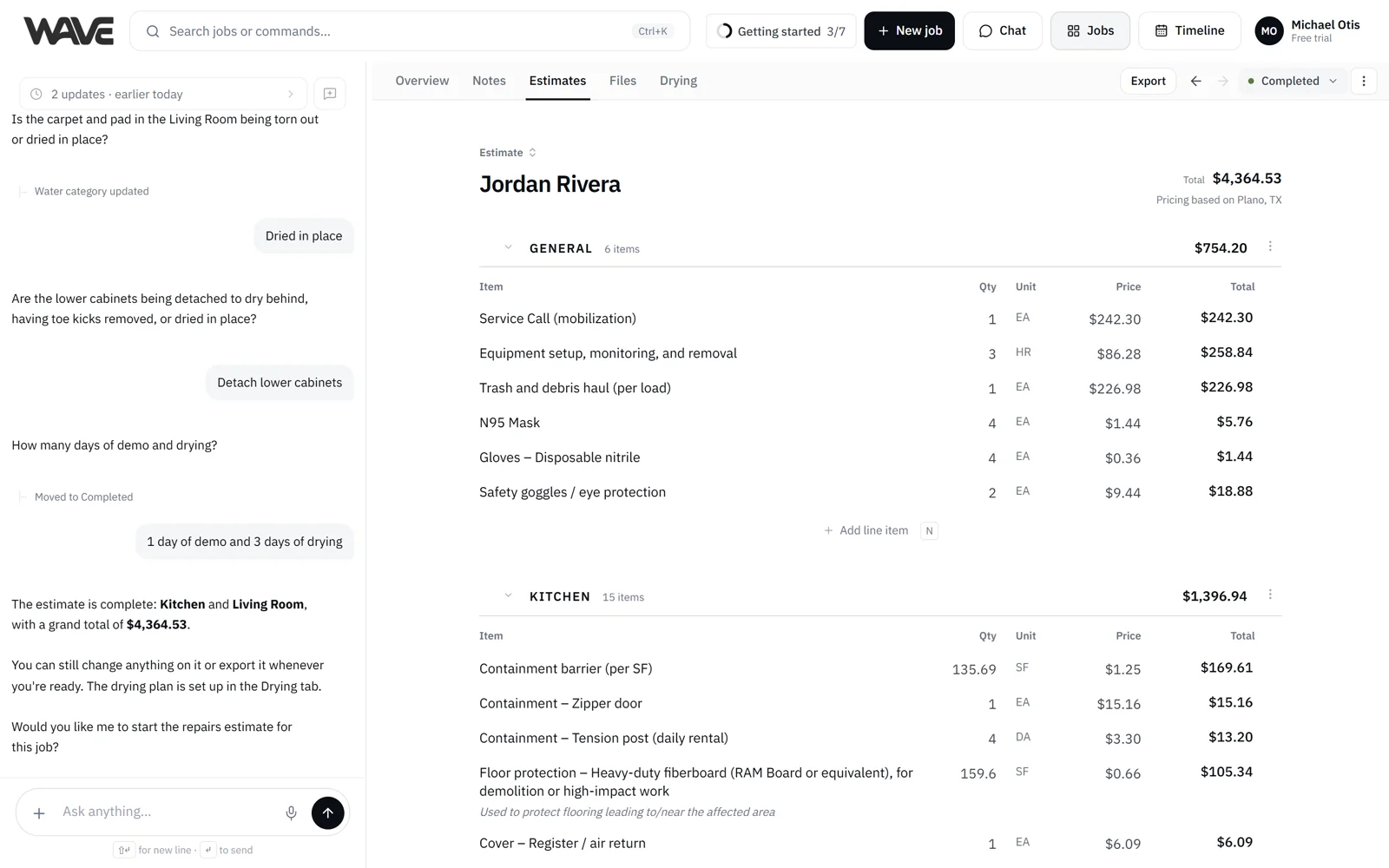
A tour of an estimate inside a job: the job tabs and top bar, the estimate header, rooms, line item columns, extra sections, the live grand total and the estimate switcher.
Everything about an estimate lives on the job's Estimates tab: rooms, line items, notes, modifiers and a grand total that updates live as you or Wave make changes. Click any cell to edit it, or ask Wave in the chat beside it. This page walks through each part and links to the how-to.
Where the Estimates tab sits
A job has these tabs: Overview, Notes, Estimates, Files and Drying. The Drying tab appears on Basic and above, the free trial, and Starter (which includes 5 free drying logs). Wave's chat sits beside each tab on desktop. On a phone, the job's view menu switches between Chat and the tabs.
- Overview holds the customer, property, loss and claim details, plus the Loss description and Project notes, which print on the PDF.
- Notes is your team's log. See Job notes.
- Files keeps photos, videos and PDFs sorted by room. See Job files.
The job's top bar shows the job status (New, Pending, Estimating, In Progress or Completed, plus any statuses your company added), Export, and the Job actions (⋮) menu with Lock estimate, Duplicate (available on paid plans), Estimate history, Cancel job (or Reopen job) and, for Admins, Archive. The job carries the status, and the job's first estimate moves it for you. See The Jobs board.
The header
- Estimate / Invoice: the small label above the customer name. Click it to switch the document's framing between Estimate and Invoice.
- Customer name and Total.
- Pricing based on: the city and state the estimate is priced for, taken from the loss address.
- Custom pricing enabled: shown when your company has turned on its own prices. See Custom pricing.
While Wave is working, a short caption says it is updating, and your hand edits resume as soon as it finishes. When the estimate is locked, a banner shows that it is in view-only mode. See Lock and unlock an estimate.
General section
General holds job-wide items that are not tied to a single room.
Room sections
Each room gets its own section showing its subtotal, item count and square footage. You can collapse a room to get it out of the way and expand it again.
- The Room actions (⋮) menu has Move up, Move down and Delete room.
- Right-click a room header for Edit room name and Delete room.
- On desktop, drag a room to reorder it.
On a water estimate, a room that dries for a different number of days than the rest of the job shows a tag with its number of drying days on the header. To change a room's days, tell Wave. See Water mitigation estimates.
A room can be renamed or deleted once photos and the drying log no longer use it. To change a room's size, tell Wave the new dimensions.
On multi-unit losses (apartments, condos, townhomes), rooms are grouped under unit headers with a subtotal per unit. See Multi-unit estimates.
Line items
Each row shows Item, Qty, Unit, Price and Total. Click any cell to edit it inline. See Edit a line item manually.
- Notes: a line can carry a note, shown under its description and printed on the PDF.
- Modifiers: After Hours, Category 3, Heavy Cleaning and No Bagging, applied to the lines they fit.
Overhead & profit and minimum charges
Repairs estimates can include an Overhead & Profit section. On roofing estimates, Wave asks whether you want it. Repairs, roofing and fire estimates can include a labor minimum section when a trade comes in under its minimum. Wave tells you when it adds one, and you can remove a section by deleting the line. See Overhead & profit and minimums.
Grand total
The footer shows the Grand total with the number of rooms and line items. Totals recalculate live as lines change.
Estimates on this job
When a job has two or more estimates, a small strip of dots floats at the bottom of the tab. The estimate you're on shows its name; click another dot to switch. See Several estimates on one job.
On a phone
Lines show as cards. Tap a card to open its edit sheet, use each card's menu for more actions, and reorder rooms with Move up and Move down. Undo arrows and drag-select are available on desktop.
Related
- Inside a job: the tabs around the estimate
- Edit a line item manually: click any cell to edit
- Several estimates on one job: switch between estimates
- Lock and unlock an estimate: view-only mode