
Get Started
Tour the Wave app
See everything you'll use in Wave in one pass. Notes, photos, estimates and visits live on one job record, with Wave's chat beside it.
See everything you'll use in Wave in one pass. Wave is built around the job: notes, photos, estimates and visits live on one record, with Wave's chat beside it. Here is a quick look at each screen.
Home
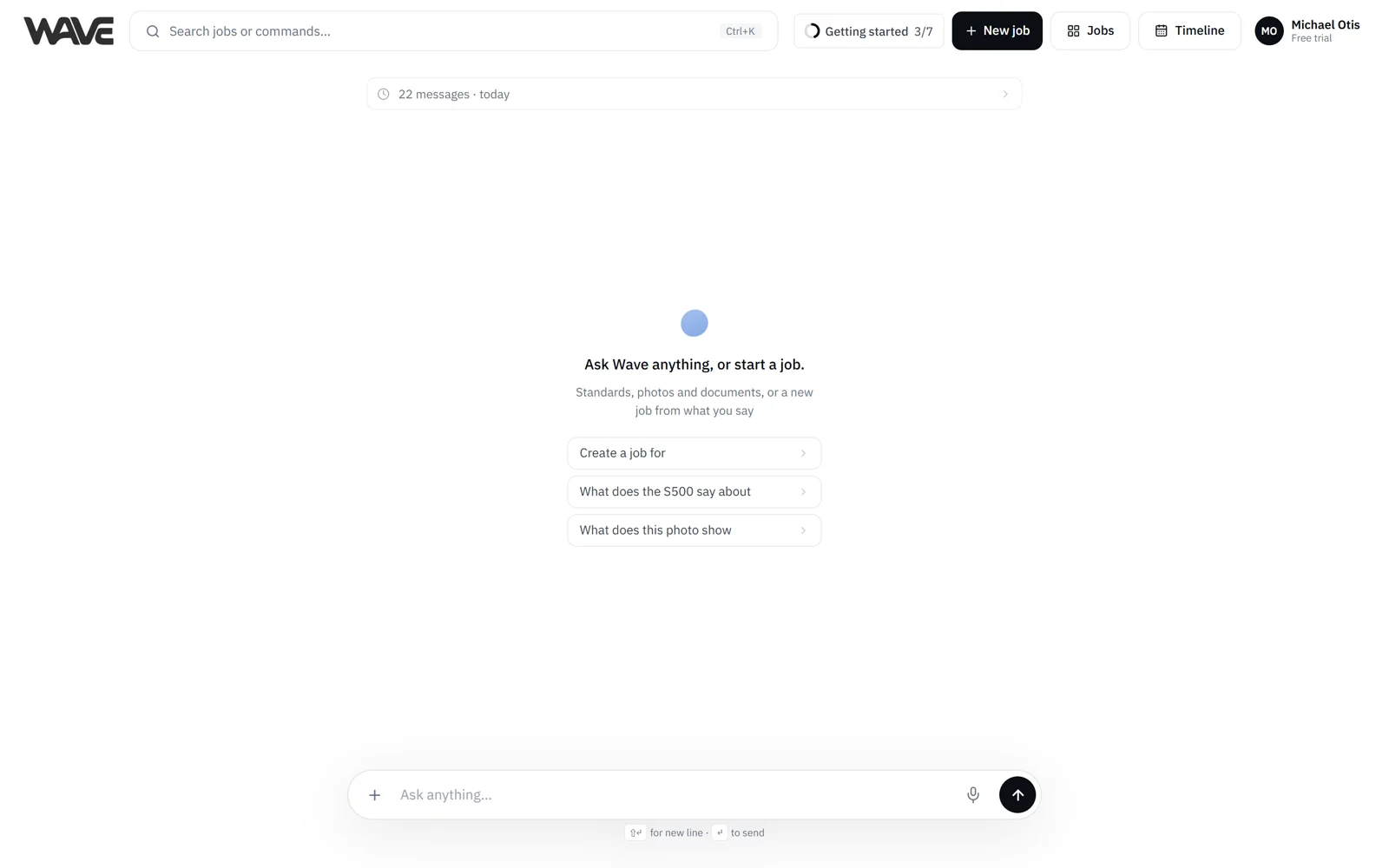
When you sign in, you land on Home: a greeting and one command box. The box reads "Create a job, make an estimate, schedule the crew, or add notes. Just say it." Tell Wave what happened or what you need, by typing, talking or adding files. Wave creates the job, starts an estimate on it, books a visit or adds a note, and shows a short receipt.
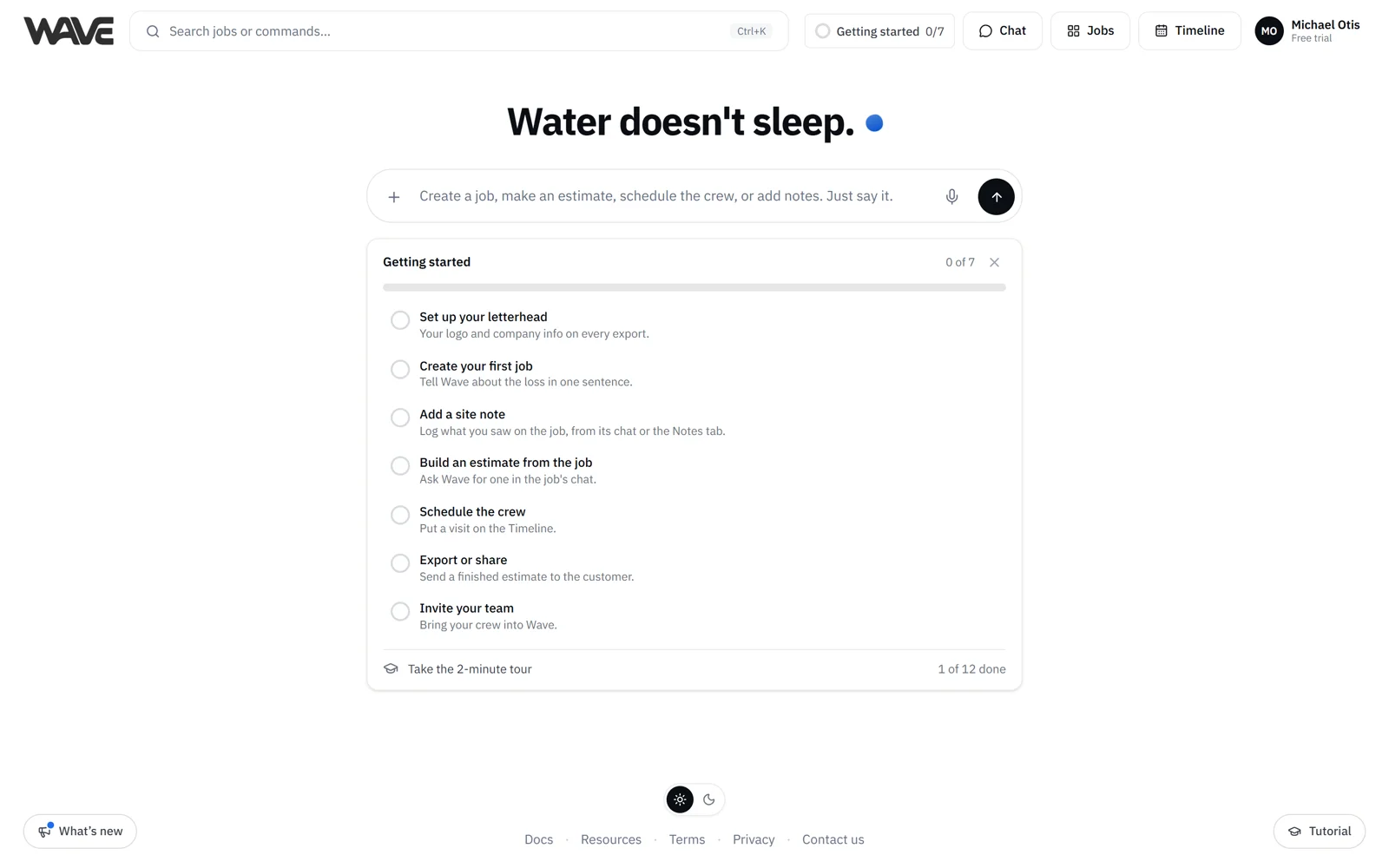
Below the box you'll see your This month numbers once your company has made five estimates and, in your first 30 days, a Getting started checklist. What's new, the Light and Dark switch, and the optional Tutorial sit along the bottom. See Home and the command box.
The top bar
- Wave logo: back to Home.
- Chat, Jobs and Timeline: the main pages. The page you're on hides its own link.
- Search jobs or commands…: finds any active job and opens the command palette.
- New job: on every page except Home. It opens Home with the box ready, so describing the job is all it takes.
- Your account menu: your plan and estimates left, Settings, Refer & earn, Contact us and Log out, plus Switch company if you belong to more than one.
During your first 30 days, a Getting started chip in the top bar carries the same checklist as Home.
Jobs
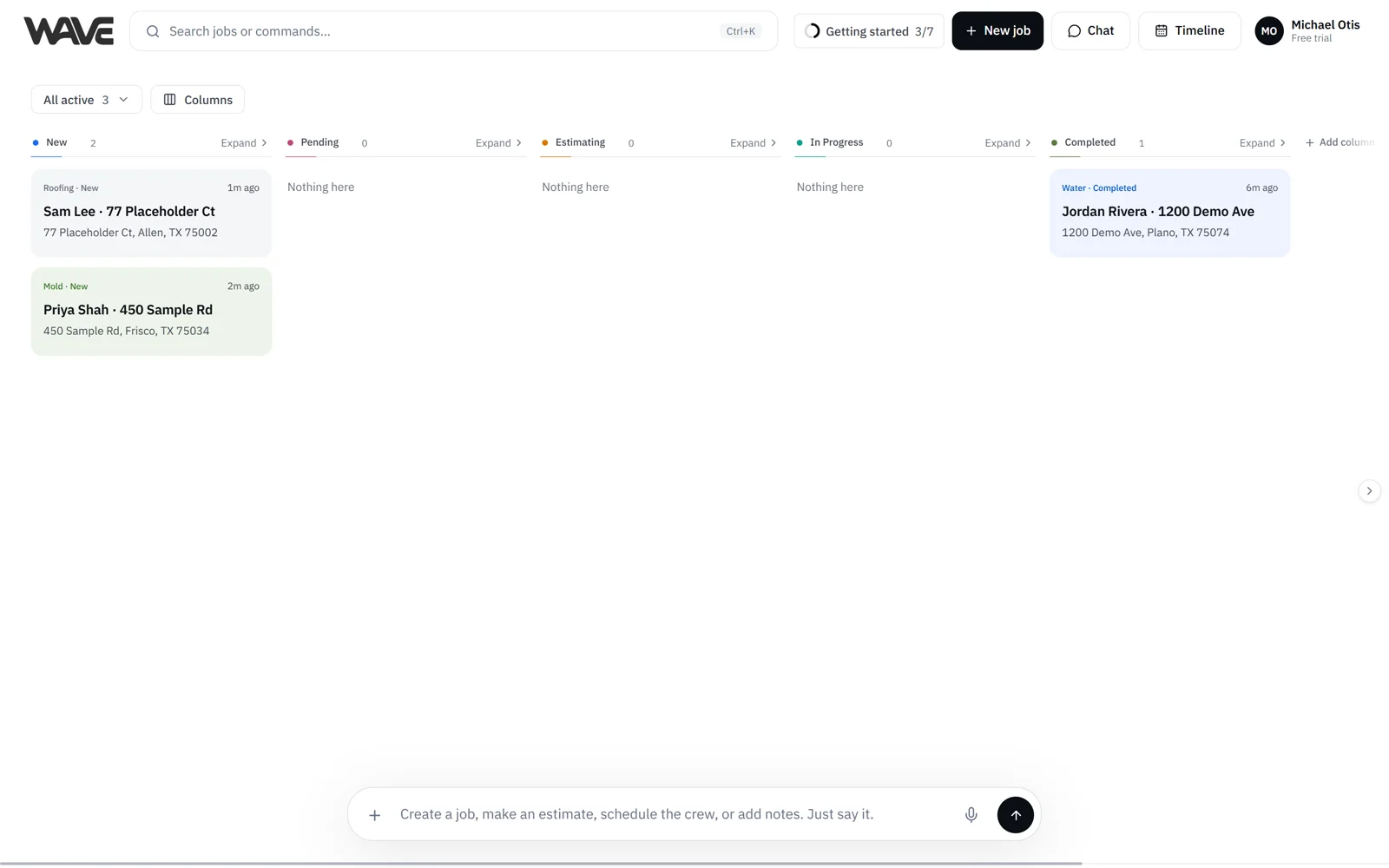
The Jobs page is a board of every active job. Assigned to me comes first with your own jobs, then a column per status: New, Pending, Estimating, In Progress and Completed, then Cancelled. Drag a card to move a job to another status. Anyone on your team can rename, add and reorder statuses right on the board. The filter menu narrows the board to All active, a single status, or Cancelled, and Columns hides or shows columns for your own view. A docked command box at the bottom lets you create or update jobs by telling Wave. See The Jobs board.
Inside a job
Open a job and you land in its workspace. Its tabs:
- Overview: customer, property, loss and claim details, contacts and the assigned team
- Notes: your team's log of notes and activity. Wave reads it, so you don't have to repeat what your team already wrote down.
- Estimates: the job's estimates, with rooms, line items and totals. Click a cell to edit it, or tell Wave.
- Files: photos, videos and PDFs, sorted by room
- Drying: the job's drying log (Basic and above, included in the free trial; Starter includes 5 free drying logs). Wave generates sample dry logs based on what real drying science would be, to help anyone on your team who is new to drying understand the drying goals for the job. If you already have a drying log, attach photos or a PDF of it in a job's chat, and Wave reads it, answers questions about it and records any readings you tell it.
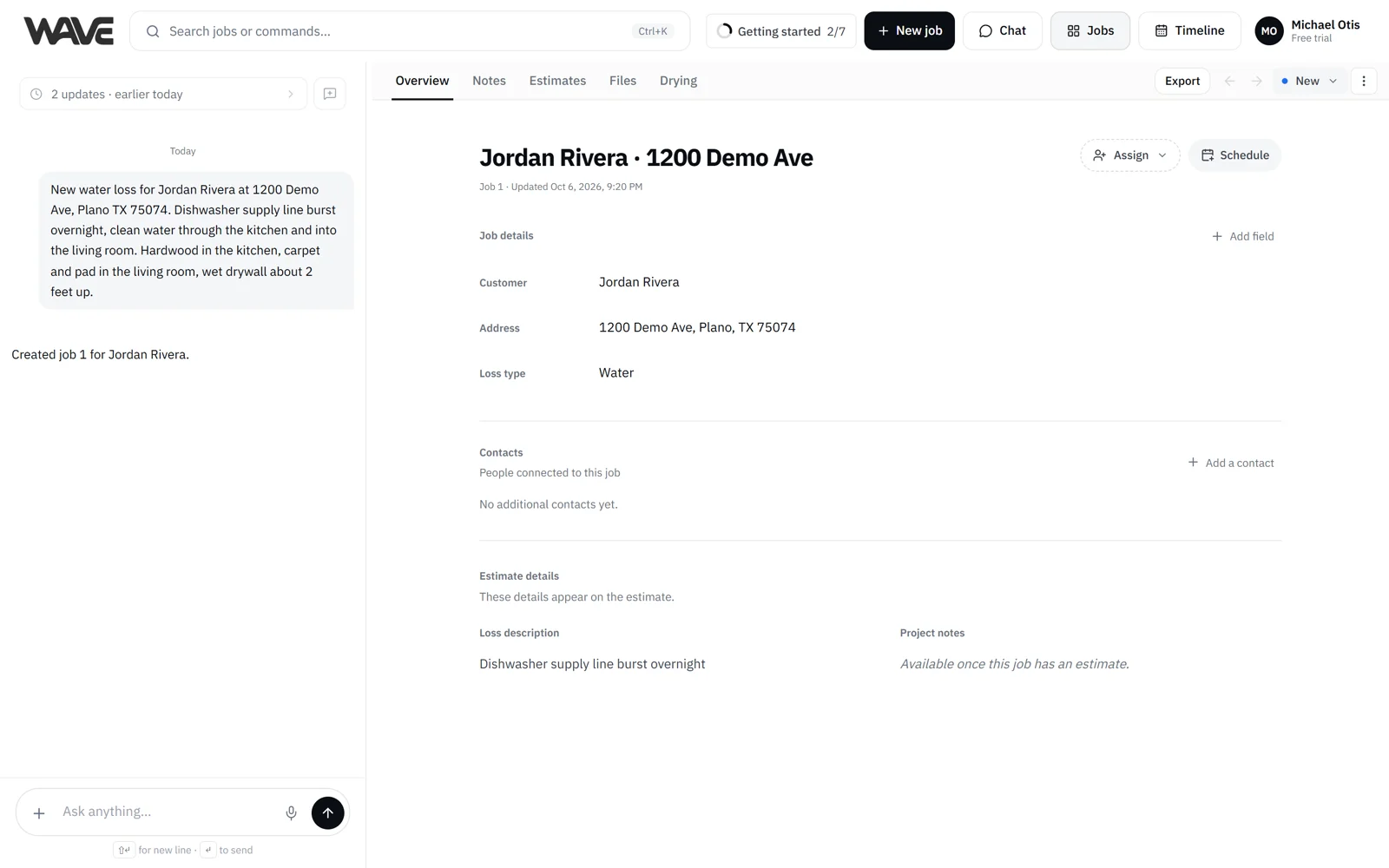
The Export button at the top of the job opens one dialog for PDFs, QuickBooks and, on Basic and above, a file for other estimating software. A Wave account specialist sets this up for your company. The Job actions (⋮) menu holds Switch sides, Collapse chat, Lock estimate, Duplicate (on paid plans), Estimate history, Cancel job or Reopen job, and Archive… (Admins only). See Inside a job.
Wave's chat beside the job
Wave's chat sits beside every tab of the job. Ask for an estimate, answer Wave's questions, change lines, log drying readings or ask about the job. Use Switch sides in the Job actions menu to put the chat on the other side, or Collapse chat to give the job more room.
Timeline
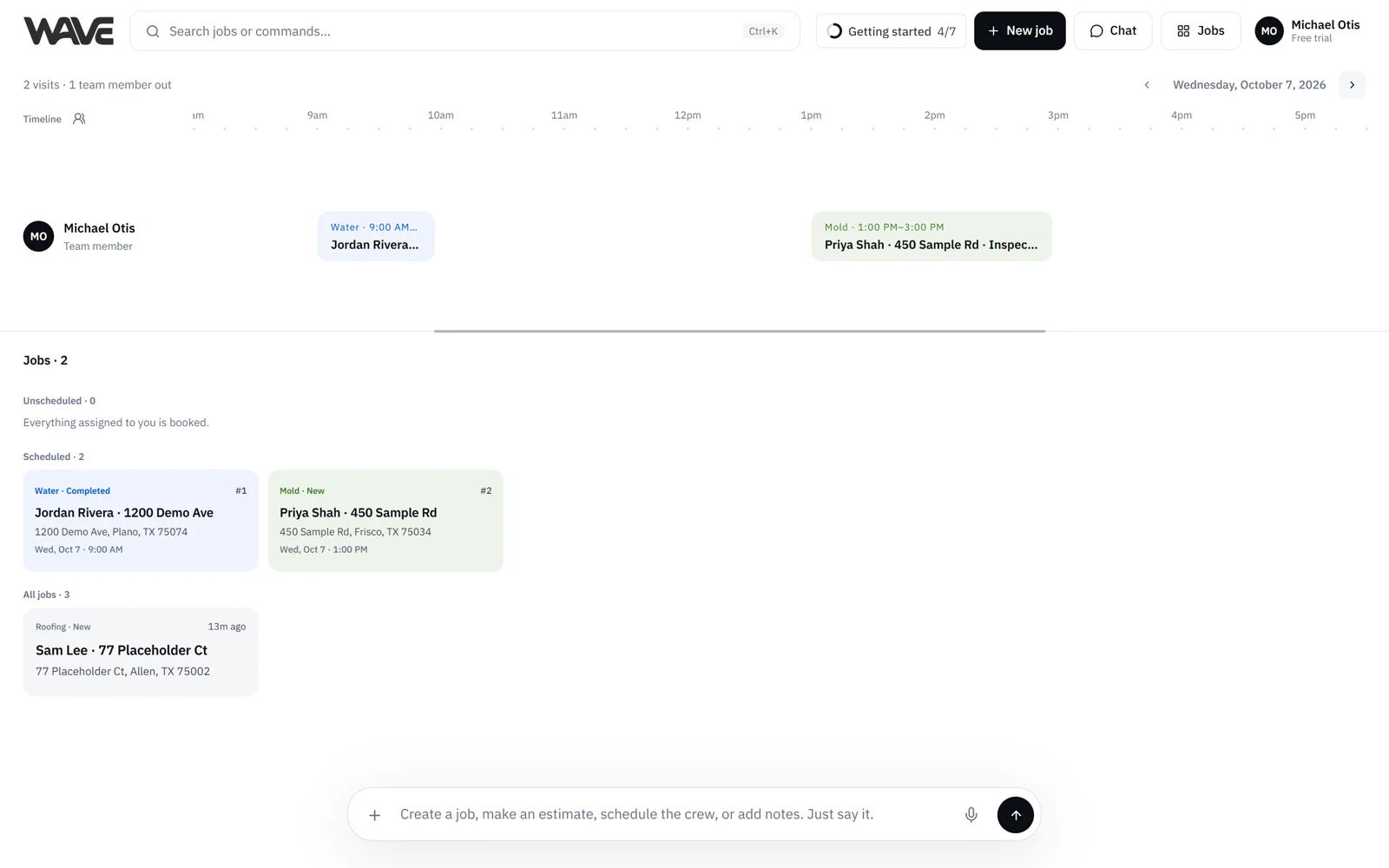
Timeline is your team's schedule: one day at a time, with a row per teammate. Drag a job onto the day to book a visit, or tell Wave in the docked box who should go where and when. On a phone, Timeline shows an agenda you can filter by person. See Timeline.
Chat
The Chat page is Wave without a job. It opens on a fresh conversation, so you can ask a general question, attach a photo or PDF, or start a job from there. New chat starts a fresh conversation any time. See Chat with Wave.
Search and the command palette
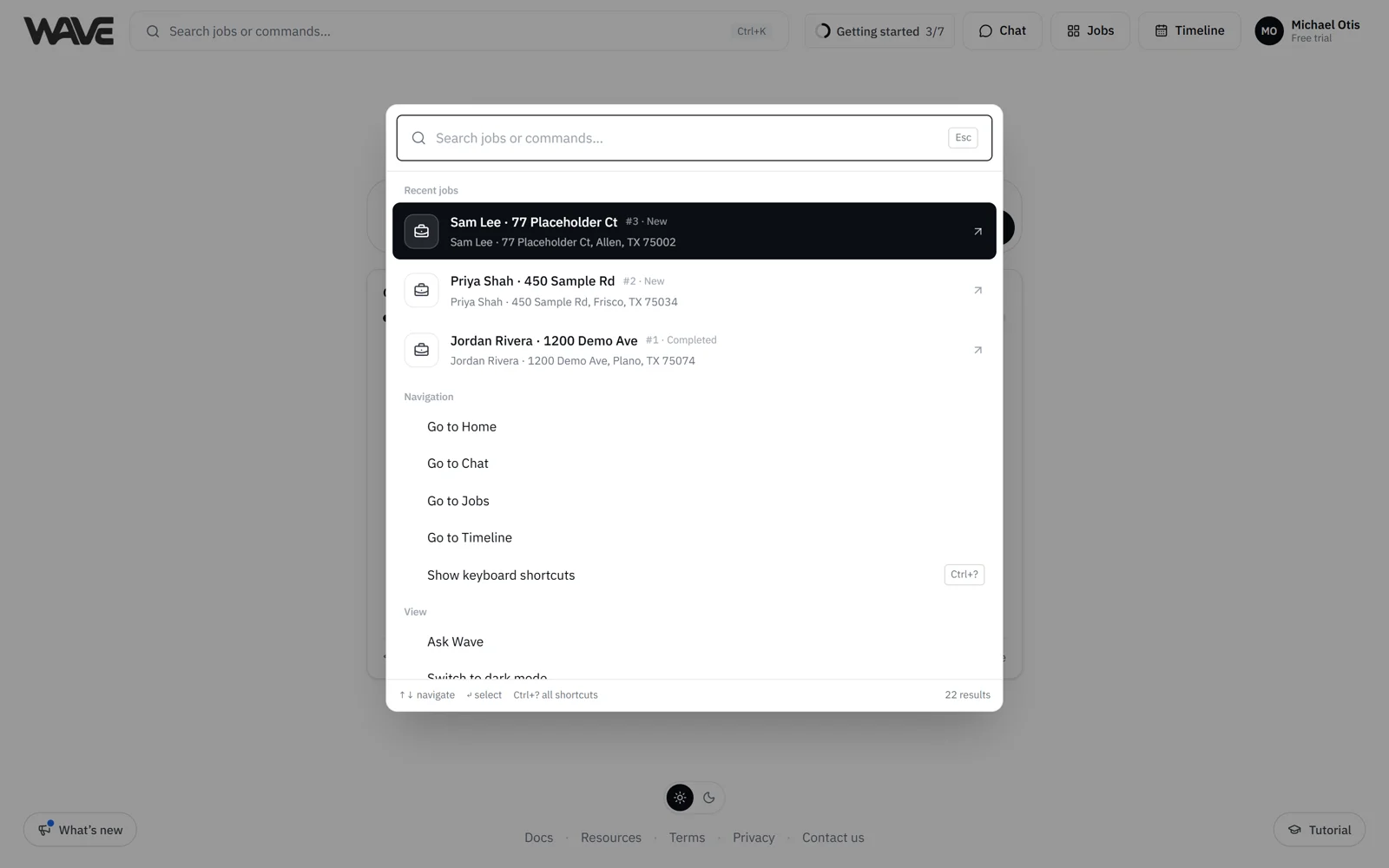
Click the search box or press ⌘K (Ctrl+K on Windows). Type to find an active job by name, job number, customer or address. The palette also moves you around: Home, Chat, Jobs, Timeline, Settings and the theme. Inside a job, ⌘1 to ⌘6 open Wave chat, Overview, Notes, Estimates, Files and Drying, and the palette also exports, shares a link, locks an estimate and opens its history and comments. See Command palette and job search.
On a phone
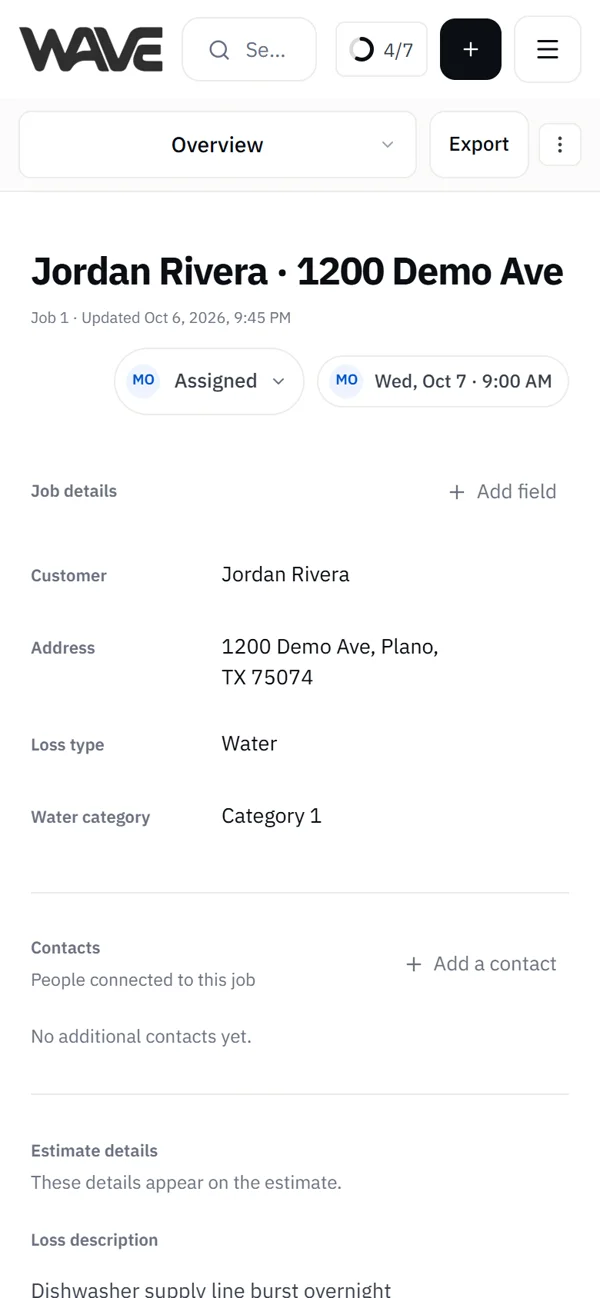
A menu button next to the search bar holds Chat, Jobs, Timeline and your account items. Inside a job, a view menu switches between Chat, Overview, Notes, Estimates, Files and Drying. When Wave is waiting on your answer, a chat bubble with a pulsing dot appears: tap it to jump straight to the question. See Use Wave on your phone.
Settings
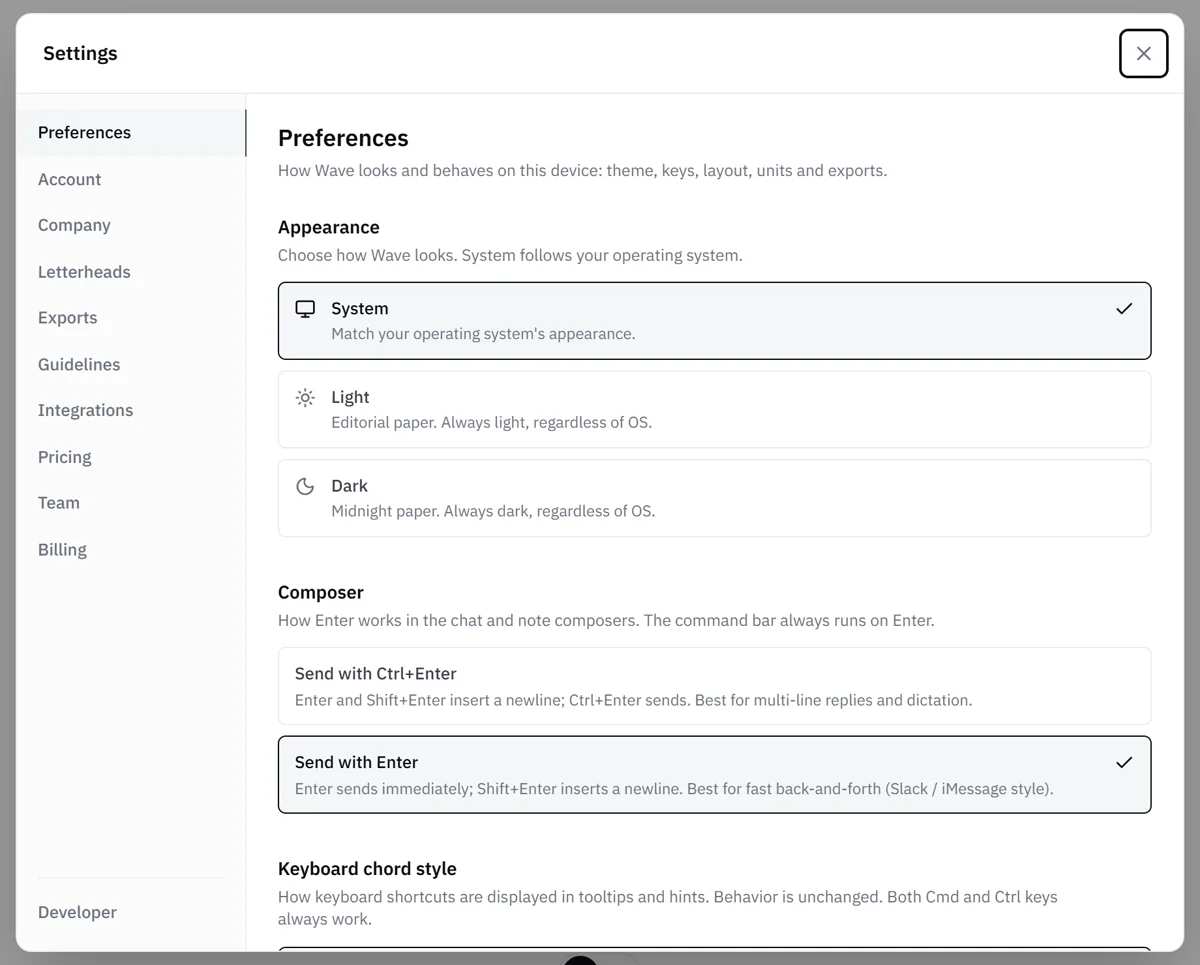
Open Settings from your account menu or the command palette. What you see depends on your role and plan:
- Everyone: Preferences (including Light, Dark or System theme and your send key), Account, Company, and Pricing, where anyone can add Your Items. Admins save Company changes and set Company Pricing.
- On Pro and the free trial: Guidelines, where anyone on the team can upload carrier or TPA guidelines.
- Admins: Letterheads, Exports, Team and Billing, plus Integrations when your plan includes QuickBooks (Basic and above) or Slack (any paid plan).
See Settings overview.
Ready to try it?
Walk a real loss from the first sentence to a finished estimate in Your first job, start to finish.
Related
- Home and the command box
- The Jobs board: statuses, filters and columns
- Inside a job: each tab inside a job
- Command palette and job search
- Settings overview: who sees which tab