
Billing & Plans
Change your plan: upgrade, downgrade, switch billing or cancel
Upgrade right away or schedule a change for your next renewal, all from Settings > Billing > Change plan. Upgrades start immediately and you pay only for the days left in your billing period.
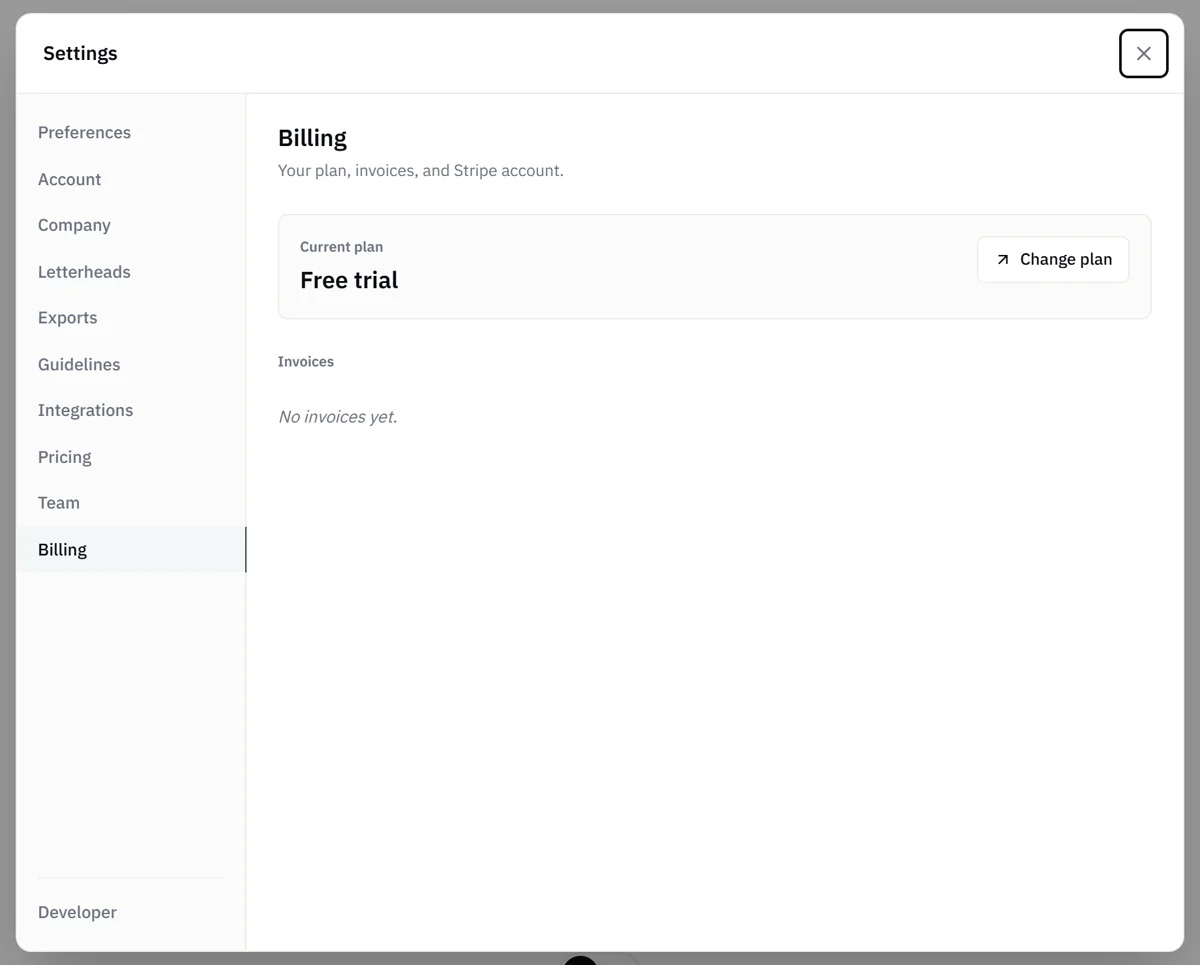
Upgrade in a couple of clicks and your new plan starts immediately, with a charge for only the days left in your current billing period. Downgrades and billing switches are scheduled for your next renewal, so you keep what you have until then. Everything happens in the plan picker on the Billing tab.
Who can do this
Admins manage plans. If you're a Member and your team needs a plan change, ask an Admin. See User roles.
Open the plan picker
- Open the account menu and choose Settings.
- Select the Billing tab. You see your current plan and, while your subscription is active, your next billing date.
- Click Change plan. The plan picker opens with the Starter, Basic, Pro and Custom cards.
On a phone, Admins can also open the picker from the account menu.
Pick monthly or annual
The Monthly and Annual toggle at the top switches all the cards between the two. Annual billing costs the same as 10 months, so you save two months a year. Your estimate allowance still refills each month on an annual plan.
Subscribe for the first time
- Choose a plan, for example Choose Basic.
- A secure checkout page opens in a new tab. Enter your card and pay.
- Back in Wave, you see "You're all set!" once your plan is active.
Upgrade
- Click Upgrade to on the plan you want.
- Wave shows the exact charge to your card on file, for the days left in your current billing period.
- Click Confirm upgrade. The new plan takes effect right away.
If your card is declined, Wave shows "Upgrade failed" and your subscription stays on its current plan. Click Edit payment details to update your card, then try again.
If the upgrade also switches you between monthly and annual, Wave schedules it for your next renewal, with no charge today.
Downgrade or switch billing
Downgrade to a smaller plan, or Switch to Annual or Switch to Monthly on your current plan, is scheduled for your next renewal. There's no charge today, and you keep your current plan until then. The target card shows Scheduled and the date it activates.
Changed your mind? Click the cancel button on the scheduled card (for example Cancel downgrade, Cancel annual switch, Cancel upgrade or Cancel switch) and you stay on your current plan. While a change is scheduled, other plan changes are unavailable until you cancel it.
Pick a Custom volume
In the plan picker, the Custom card accepts 1-4, or a number divisible by 5. It prices 1-4 and 5, and multiples of 5 from 30 through 10,000. Moving to a higher volume is an upgrade and a lower one is a downgrade, with the same steps as above. For 10, 15, 20 and 25, the card points you to the fixed plan that already covers that volume. A multiple of 5 above 10,000 shows that the volume is priced by hand. Any other number asks you to choose 1-4 or a number divisible by 5. At 30 or more estimates a month, Custom includes everything in Pro, and at 5 or fewer it includes what every paid plan includes. See Plans and limits.
Cancel your subscription
- In the plan picker, find your current plan's card.
- Click Cancel subscription, then Yes, cancel subscription.
You keep full access and your estimate allowance until the end of the billing period, and you won't be charged again. If a plan change is scheduled, cancel that change first.
If a payment fails
When a renewal payment doesn't go through, Change plan becomes Update payment method, which opens a secure page to change your card. See Billing history.
When Wave points you to an upgrade
You can also start from inside the app. When your company reaches its monthly estimate limit, Admins land in the plan picker with a note about the limit, and Members see "Limit reached" with a prompt to contact an Admin. When a feature belongs to a higher plan, Wave points you to the upgrade. See How estimate credits work.
Choosing a plan
Not sure which plan fits? See Plans and limits and the pricing page.