
Jobs & Timeline
Upload photos
Drop site photos, videos and PDFs onto a job and Wave suggests a room for each one, so every estimate on the job starts from the same organized set.
Photos live on the job's Files tab, organized by room. The tab belongs to the job, so every estimate on the job uses the same photos. There are two ways to get them in.
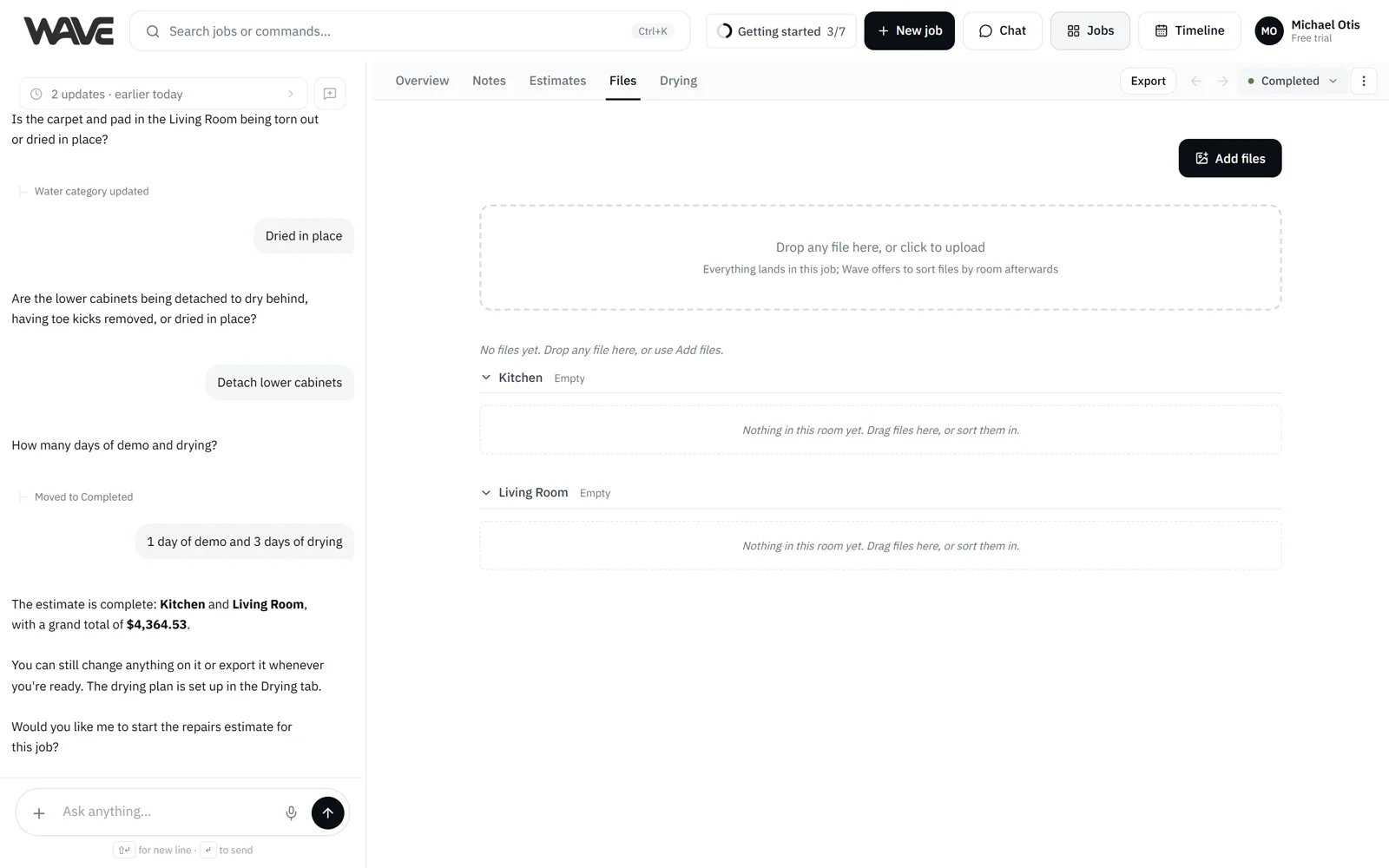
Upload on the Files tab
- Open the job from Jobs and go to Files. On a phone, pick Files from the job's view menu.
- Drop photos, videos or PDFs onto the tab, or click the upload area or Add files and choose them.
- Keep working. Uploads continue if you switch to another tab of the job.
You can add up to 40 files at a time. Photos can be up to 20 MB each, PDFs up to 100 MB and videos up to 200 MB. If a file fails, click Retry beside it.
Send them to Wave in chat
In the job's chat, or in the Home box, click + (Add files) and pick your files, or paste an image straight in. You can add up to 10 files per message. Add a few words if you want Wave to do something with them ("these are the kitchen, what do you see?"), or send the files on their own. When you're chatting beside an open estimate, see Ask Wave about photos for the photo limits there.
Wave keeps the files on the job's Files tab and confirms in the chat. From Home, the files go to the job your request is about.
Sort them into rooms
New uploads start in Unsorted. After an upload, Wave may open a Sort N files by room window. Where Wave has a suggestion, the room is already picked, and an amber dot marks a suggestion worth double-checking.
- Change any row's room, or use Assign all to for the whole batch.
- Add a room the job doesn't have yet with New room.
- Click Confirm to place the photos, or Cancel to leave them in Unsorted.
To sort later, click Sort on the Unsorted section, or open the ⋮ menu beside Add files and choose Sort N unsorted. To move a photo you already placed, right-click it and choose Move to room….
Photos on the PDF
When you export, the Export dialog has two photo options:
- Estimate photo appendix, under PDF contents, adds photos that aren't attached to an estimate line, captioned by room ("Kitchen 1", "Kitchen 2").
- Photos, under Include in PDF, builds a report from the Files tab's photos, by room and date. Mark photos with Add to export on the Files tab and the report starts with just those, with one tap to include every photo.
On multi-unit jobs, the appendix captions include the unit as well as the room, so photos from the same room name in two units stay apart. Preview the PDF before you send it to confirm the photos you want are included. See Export reports and Estimate a multi-unit loss.
You stay in control of your scope
Wave can look at a photo and tell you what it sees. If it spots a difference between a photo and the estimate, it proposes the change in chat and you confirm it. See Ask Wave about photos.
Download photos
Need the photo set separate from the PDF, for a carrier upload portal or a file request? See Download photos.
Related
- Job files: rooms, Unsorted, renaming, captions and deleting
- Ask Wave about photos: what Wave can tell you about a photo
- Download photos: get the files back out as a ZIP
- Export reports: the photo appendix and Photos report