
Rooms & Line Items
Edit a line item manually
Click any cell on the estimate to edit it in place. Number cells do the math and take feet and inches, and the values you set stay put.
The estimate edits like a spreadsheet: click a cell, type, press Enter. Quantity and price cells do the math for you, and the numbers you set stay put.
Open the job, go to the Estimates tab, find the row you want, click it and type.
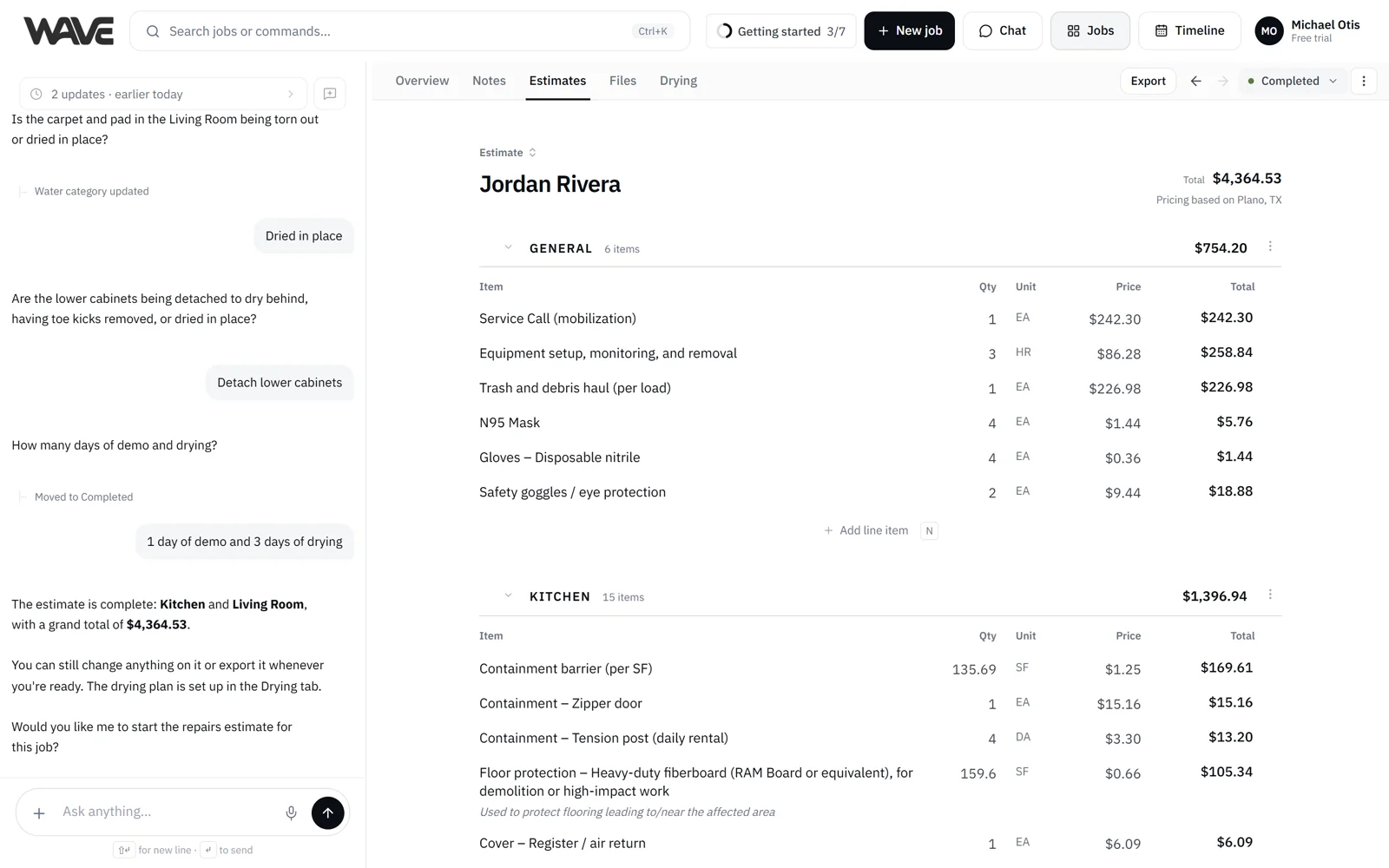
Click to edit
Click any cell on a line item (description, quantity, unit or price) and it becomes editable in place.
- Enter commits the change. Totals reprice immediately.
- Esc cancels and restores the previous value.
Move around with the keyboard
- Tab / Shift+Tab move to the next or previous cell, spreadsheet-style, wrapping across rows.
- ↑ / ↓ move between line items. The focused column is remembered as you go.
- ← / → move across cells in the row.
Jump straight into a field
With a row selected, press a single key to start editing a specific field:
- E edits the description
- Q edits the quantity
- U edits the unit
- P edits the price
Press Enter on a focused cell to start editing it. Press it again to commit. The full list lives in Keyboard shortcuts.
Let Wave do the math
Quantity and price cells accept arithmetic, so you can skip the calculator:
12*1.5or100/4for simple math(2+3)*4when you need parentheses5'5" + 3'4"for feet and inches, which Wave converts to feet
Wave computes the result when you save the cell.
Your hand edits stick
When you change a quantity or a price by hand, Wave keeps your number. Later updates, such as Wave reworking a room, leave the value you set in place. If you want a different number later, edit the cell again or ask Wave in chat.
When editing pauses
Editing pauses in two situations:
- While Wave is working. If Wave is updating the estimate from chat, the estimate pauses and shows a note saying so. Editing opens up again the moment Wave finishes.
- When the estimate is locked. Unlock it first. See Lock and unlock an estimate.
Editing on a phone
On a phone, line items show as cards. Tap a card to open an edit sheet with all of its fields in one place, make your changes and save. The same math and feet-and-inches input work there.
Undo
Changed your mind? ⌘Z (Ctrl+Z) undoes your last change and ⇧⌘Z (Ctrl+Shift+Z) redoes it. See Undo and redo.
When to use this or chat
- Edit manually for one-off tweaks where you can see the row, especially anything involving math.
- Use chat when you're making several changes at once or would rather describe the change in plain words.
Both land on the same estimate, and undo covers both. See Edit a line item via chat.
Related
- Edit a line item via chat: the plain-words equivalent
- Add a custom line item: for items beyond what Wave scopes
- Line item modifiers: apply pricing modifiers
- Undo and redo: step back through hand edits and Wave's edits
- Keyboard shortcuts: estimate shortcuts in one place